
Cooking from your phone: screen on, big steps, no floury hands
· 7 min read
THE SHORT ANSWER
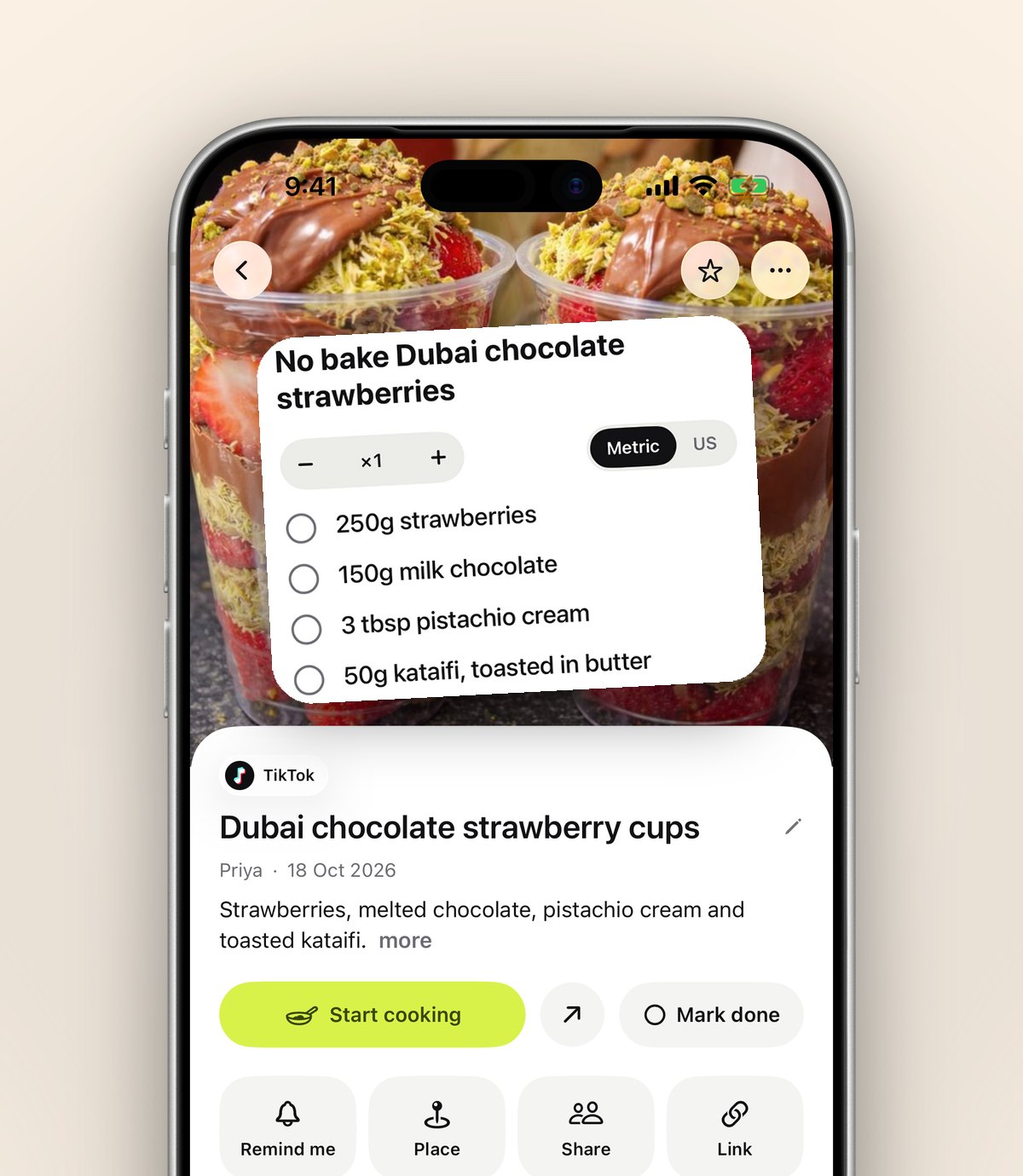
A cooking mode recipe app keeps your phone's screen on and shows a recipe's ingredients and one step at a time in large type, so you can cook without unlocking your phone. anoli, a free iPhone app that saves recipes from Instagram, TikTok and websites, turns a saved recipe into ingredients and steps with Summarise (Pro), then opens it in cooking mode with big Back and Next buttons.
You've found the recipe. It's a reel you saved last week, or a website with a very long introduction about someone's holiday in Tuscany. You prop your phone against the kettle, start chopping, and look up to check the next step. The screen has gone dark. Your hands are covered in flour, so you try to unlock it with a knuckle, and it doesn't recognise your face because you're leaning over a pan.
Cooking from a phone should be easy, and it can be. This guide covers how to keep your screen awake, how to turn a recipe video into steps you can follow, and how a proper cooking mode makes the whole thing calmer.
Why is cooking from your phone so awkward?
Phones are designed for quick glances, not for sitting on a worktop for forty minutes. The usual problems:
- The screen locks. Auto-Lock turns the screen off after a minute or so to save battery.
- The text is small. Recipe websites and captions aren't made to be read from an arm's length away.
- Steps are buried. Video recipes often say the method out loud and only list a few words in the caption.
- Scrolling with messy hands. Tiny scroll movements are hard with wet or floury fingers, and you lose your place.
- Videos are fast. A sixty second reel shows each step for a couple of seconds.
How do you keep your iPhone screen on while cooking?
There are a few ways, from quick fixes to a proper solution.
Change Auto-Lock while you cook
- 1Open Settings, then Display & Brightness.
- 2Tap Auto-Lock and choose Never.
- 3Remember to set it back afterwards, or your battery will drain and your phone will stay unlocked in your pocket.
It works, but it's easy to forget to change back, and it doesn't help with small text.
Use Guided Access
Guided Access, in Settings under Accessibility, locks the phone to one app and can stop accidental taps. It's useful if children are helping in the kitchen, but it takes a bit of setting up.
Use an app with a cooking mode
The simplest option is an app that keeps the screen on by itself while you cook and switches back to normal when you close it. Many recipe apps have one. anoli's cooking mode does this, and adds big type and one step per page.
What is anoli's cooking mode?
anoli is a free iPhone app that saves recipes from Instagram, TikTok, YouTube and any website into folders. Cooking mode is how you cook from them. It shows:
- The ingredients first, on their own page, so you can get everything out before you start.
- Then one step per page, in big type you can read from across the kitchen.
- Big Back and Next buttons, easy to tap with a knuckle or the back of a finger.
- A screen that stays on for as long as cooking mode is open.
Because there's only one step on the screen, you never lose your place. Tap Next when you're done, and if you need to check something, tap Back.
How do you turn a recipe video into steps?
Most recipes you save from social media are videos with a caption. Some captions are a full recipe, others are a list of ingredients and "method in the video". Here's how to turn either into something you can cook from.
Save the recipe
- 1On the reel, TikTok or recipe page, tap Share and choose the app.
- 2The first time, scroll the app row to the end, tap More, then Edit, switch it on and drag it to the front.
- 3It reads the caption and files the recipe into your Recipes folder.
We've written more about this step in how to save Instagram recipes and the wider recipe organiser app guide.
Summarise it
With anoli Pro, tap Summarise on the saved recipe. It turns the caption into ingredients and steps. If the method is only spoken in the video, attach the video and the app listens to what's said too, so the spoken steps end up in the summary.
Open cooking mode
Once the recipe has ingredients and steps, open cooking mode from the recipe. You'll see the ingredients first, then each step, one page at a time.
Tip: summarise the recipe when you save it, not when you're about to cook. Then cooking mode is ready the moment you walk into the kitchen.
Getting your kitchen set up for phone cooking
A few small things make a real difference.
Where to put your phone
- A cheap phone stand or a small cookbook stand keeps the screen upright and out of splashes.
- Prop it at eye level if you can, on a shelf or against the wall, so you're not bending over.
- Keep it away from the hob and the sink. Heat and water are the main risks.
Keeping it clean
- A clear sandwich bag over the phone protects it from flour and sauce, and you can still tap through it.
- Keep a tea towel nearby and wipe your hands before tapping.
- Big buttons help, because you can use a knuckle rather than a fingertip.
Timers
Siri can set timers hands free: say "set a timer for twelve minutes" and carry on. You can run several timers at once on recent versions of iOS, which is handy when the rice and the sauce need different times.
Cooking from your saved recipes, start to finish
Here's what a weeknight dinner looks like with everything in place:
- 1Open the app and go to your Recipes folder, or search for an ingredient you have, like "chickpeas".
- 2Pick a recipe. If it's not summarised yet, tap Summarise.
- 3Open cooking mode and read the ingredients page. Get everything out.
- 4Tap Next to start. Follow one step at a time.
- 5Set timers with Siri as the recipe asks.
- 6When you're done, mark the recipe as done and add a note: "less chilli next time" or "doubled the garlic, perfect".
Those notes are searchable later and turn your saved recipes into your own tested collection.
How do you get a recipe ready before you start?
Cooking mode is calmest when you've done a little preparation. Chefs call it mise en place, which just means everything in its place. A few minutes before you cook:
- 1Read the whole recipe once, from the first step to the last. Look for anything that needs time: marinating, chilling, resting dough.
- 2Check the ingredients page and get everything out on the worktop.
- 3Weigh and chop first. If the steps move quickly, having everything ready means you're not chopping onions while the garlic burns.
- 4Note any swaps. If you're using a different cheese or skipping an ingredient, add a quick note to the recipe so you remember next time.
- 5Clear a spot for your phone where it's easy to see and away from splashes.
Social media recipes are often quick to watch but slower to cook than they look. A sixty second reel can easily be an hour in a real kitchen, so reading through first saves surprises.
Cooking with someone else
If you cook with a partner or housemates, a shared folder (Folders with friends, part of Pro) means you're both saving into the same Recipes folder. Everything either of you saves lands there, with reactions and a conversation on every recipe, so "shall we make this tonight?" happens next to the recipe rather than in a separate chat.
How do other options compare?
Recipe websites
Good for: full written recipes. Many have a print view or a jump to recipe button, and some have their own cook mode. The catch is adverts and pop ups, and you're relying on one site.
Dedicated recipe managers
Good for: people who cook mostly from websites and like importing recipes, planning meals and building shopping lists. Several established apps do this well.
Screenshots and the camera roll
Good for: quick reference. But the text is often small, and the method in a video isn't captured at all.
anoli
Good for: people whose recipes come from Instagram, TikTok and YouTube as well as websites. It saves them all in one place, turns captions and spoken videos into steps with Summarise, and opens cooking mode with the screen on.
Make your next dinner easier
Pick one recipe you've saved and keep meaning to make. Summarise it, open cooking mode, and cook it this week. It's a small change that makes cooking from your phone feel far less fiddly. For more on using your saves to plan the week, see our guide to meal planning from saved recipes.
It's free to start, with no account and no card. Pro is £10 a year and includes summaries and transcripts. Get anoli from the App Store, see what people say on our reviews page, or find out more on the anoli home page.
Questions people ask
How do I stop my iPhone screen turning off while cooking?
Go to Settings, Display & Brightness, Auto-Lock and choose Never, then change it back after cooking. Or use a recipe app with a cooking mode, such as anoli, which keeps the screen on only while cooking mode is open.
Is there a recipe app with a cooking mode?
Yes, several. anoli's cooking mode shows ingredients first, then one step per page in big type with large Back and Next buttons, and keeps the screen on.
Can I turn a TikTok or Instagram recipe into steps?
Yes. Summarise, a Pro feature, turns a saved recipe's caption into ingredients and steps. Attach the video and the spoken method is included too.
Is anoli's cooking mode free?
The app is free to start. Cooking mode opens from a recipe's ingredients and steps, which come from Summarise, part of Pro at £10 a year.
How do I set a timer while cooking without touching my phone?
Ask Siri to set a timer, for example "set a timer for twelve minutes". Recent versions of iOS let you run more than one timer at a time.
Try it with your own saves
Free to start on iPhone and iPad. See what people say.