
iPhone Action Button ideas: save things in one press
· 7 min read
THE SHORT ANSWER
The iPhone Action Button can run a Shortcut or a Control as well as the built in options, which makes it a handy one press save button. With anoli, a free iPhone app that saves posts and links into folders, you can set the Action Button to Save to anoli to save a link you copied, or to a Shortcut that takes a screenshot and saves it to anoli. iOS doesn't let any app see what's on screen by itself, so the share sheet is still the way to save an exact post.
The Action Button replaced the old mute switch on the iPhone 15 Pro and is on newer iPhones too, including the iPhone 16 and 17 ranges. Plenty of people set it to silent mode or the torch on day one and never touch the setting again. That's a shame, because it can do far more.
This guide collects practical Action Button ideas, explains how to set each one up, and covers one that's especially useful if you're always finding things online: a button that saves to your collection in one press. It's also honest about the limits, because iOS has some rules about what a button press can see.
Which iPhones have an Action Button?
The Action Button is on the iPhone 15 Pro and 15 Pro Max and on the newer models since then, including the iPhone 16 and iPhone 17 ranges. It's the small button on the left side, above the volume buttons. If your iPhone has a mute switch there instead, skip to the section on Back Tap, which gives you something very similar.
How do you change what the Action Button does?
- 1Open the Settings app.
- 2Tap Action Button.
- 3Swipe left or right through the options. Each one shows a little animation of what it does.
- 4Stop on the one you want. For Shortcut and Controls, tap the button underneath to choose which shortcut or control to run.
- 5Leave Settings. To use it, press and hold the Action Button.
The options include Silent Mode, Focus, Camera, Torch, Voice Memo, Translate, Magnifier, Shortcut and Controls, among others, depending on your model and iOS version.
Practical Action Button ideas
The best setting is the one you'd use several times a day. Here are ideas that people actually stick with.
1. Silent mode, the classic
If you switch your ringer on and off often, keeping the old behaviour is completely reasonable. It's the default for a reason.
2. Torch
Fast, useful at night, and much quicker than opening Control Centre with gloves on in December.
3. Camera
A press and hold opens the camera. Good if you take a lot of quick photos, though many iPhones also have other ways to open the camera quickly.
4. Voice Memo
Great for students, musicians and anyone who has ideas while walking. Press and hold and start talking.
5. A Focus mode
Turn on Do Not Disturb or a Work Focus in one press, and press again to turn it off.
6. Translate
Useful when travelling. The Translate option can listen and translate a conversation.
7. A Shortcut
This is the most flexible choice. A shortcut can do several things in a row: log water, start a timer, send a message, or save something.
8. A Control
Controls are the same buttons you can put in Control Centre or on the Lock Screen. Apps can offer their own, which opens up ideas beyond Apple's built in options.
Can the Action Button save what's on my screen?
This is the idea people ask about most: press the button while you're watching a reel, and it's saved. It's worth being clear about how iOS works here, so you know what to expect.
iOS doesn't let a button press, a shortcut or a control see which reel, video or page is open in another app. That's a privacy rule, and a sensible one. So no app can offer a true press to save this post button. What you can do is one of two things.
- Save a screenshot of the screen. A shortcut can take a screenshot and pass it to an app.
- Save a link you've copied. Copy the link first, then the button saves it.
The share sheet remains the way to save the exact post, page or video with everything attached to it.
How to set up the Action Button to save to anoli
anoli is an iPhone app that keeps the things you save online in one place and sorts them into folders. It offers both of the approaches above. You'll also find these steps in the app under Settings > Save with the Action Button.
Option one: save the link you copied
Best when you want the real post or page, not just a picture of it.
- 1Open Settings, then Action Button, and swipe to Controls.
- 2Choose Save to anoli.
- 3Now, in Instagram or TikTok, tap Share, then Copy link. In Safari, tap Share, then Copy.
- 4Press and hold the Action Button. anoli saves the link and files it into a folder for you.
So iOS doesn't ask permission every time, open Settings, then Apps, then anoli, and set Paste from Other Apps to Allow. The same Save to anoli control can also go in Control Centre or on the Lock Screen.
Option two: save what's on screen as a screenshot
Best for shops, product pages and reels where the important thing is visible on screen.
- 1Open the Shortcuts app and tap the plus to make a new shortcut.
- 2Add the Take Screenshot action.
- 3Add the Save to anoli action after it.
- 4Open Settings, then Action Button, swipe to Shortcut and choose your new shortcut.
Now a press and hold saves the screen to anoli. anoli keeps the screenshot and reads it on your iPhone for the product, place or link in it. Saving pictures is part of anoli Pro.
Tip: For the actual reel, with its caption and video, the share sheet is still best: tap Share, then anoli. Use the Action Button for speed and the share sheet for the full post.
No Action Button? Use Back Tap
Back Tap lets you double or triple tap the back of your iPhone to run an action, and it works on many older models.
- 1Open Settings, then Accessibility, then Touch.
- 2Scroll down and tap Back Tap.
- 3Choose Double Tap or Triple Tap.
- 4Pick a shortcut from the list, such as the screenshot shortcut you made above.
Back Tap is surprisingly reliable once you get used to the rhythm. It can occasionally trigger by accident in a tight pocket, so triple tap is a safer choice if that bothers you.
Action Button vs share sheet vs Back Tap: which should you use?
Each way of saving has a different strength.
- Share sheet: saves the exact post or page, caption and all. Works in any app with a Share button. Two taps.
- Action Button with Save to anoli: one press after copying a link. Good when you've already copied something.
- Action Button with a screenshot shortcut: one press, nothing to copy. Good for shopping and anything visual.
- Back Tap: the same shortcuts on iPhones without an Action Button.
Most people settle on the share sheet for posts and use the button for quick screenshots. To make the share sheet faster too, see our share sheet tips for putting anoli first in the row.
What happens to the things you save this way?
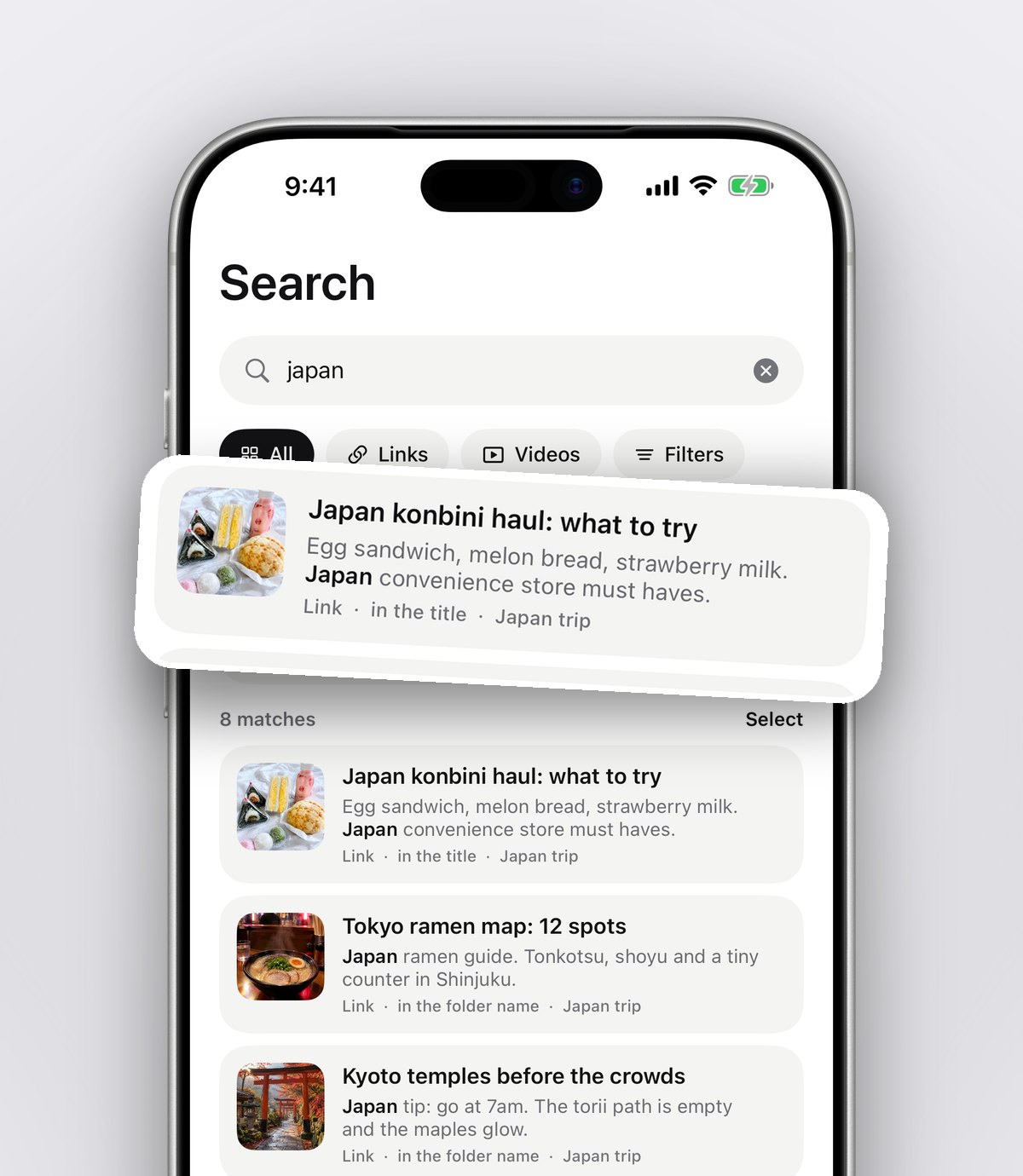
Whichever route you use, the save lands in anoli and gets the same treatment. anoli reads the caption, page or screenshot and files it into a folder like Recipes, Travel or Shopping. If it isn't sure, the save waits in Needs sorting for one tap. Later, search looks inside notes, captions, transcripts and PDFs, so you can find things by a word you remember.
Screenshots are a common source of clutter, so if your camera roll is already full of them, our guide to organising screenshots on iPhone is a good next step. And if you also save from a laptop, the Chrome extension guide explains how pages you save there appear on your phone.
Which Action Button setting suits you?
If you're not sure where to start, match the button to how you use your phone.
- You're always finding things online: a Save to anoli control or a screenshot shortcut, so ideas are kept in one press.
- You work in meetings or lessons: Silent Mode or a Focus, so you can go quiet without looking.
- You walk the dog after dark: the torch.
- You travel a lot: Translate.
- You think out loud: Voice Memo.
- You love automation: a Shortcut that runs a few actions at once, like starting a timer and turning on a Focus.
You can change it any time in Settings, so it's worth trying a new one each season. A December setting might be the torch, and a spring one might be a save button for all the trip ideas you'll be finding.
Getting the most from the Action Button
Pick one job for the button and give it a week. If you don't reach for it, try another. The right setting is the one your thumb finds without thinking. For people who are always spotting things worth keeping, a one press save is a strong candidate.
If you'd like to try it, install anoli from the App Store, free with no account to start. You can read more on the anoli home page or see the reviews.
Questions people ask
What are the best iPhone Action Button ideas?
Popular choices are silent mode, the torch, Voice Memo, a Focus mode, Translate, and a Shortcut or Control that does something you repeat often, such as saving a screenshot or a copied link.
Can the Action Button save an Instagram reel?
Not directly, because iOS doesn't let a button see which reel is open. You can copy the reel's link and press the button to save it, or use a screenshot shortcut. For the full post, tap Share and choose anoli.
How do I make the Action Button run a shortcut?
Open Settings, tap Action Button, swipe to Shortcut and choose the shortcut you want. Press and hold the button to run it.
What if my iPhone doesn't have an Action Button?
Use Back Tap: Settings > Accessibility > Touch > Back Tap, then pick a shortcut for a double or triple tap on the back of the phone.
Does saving screenshots to anoli cost anything?
anoli is free to start. Saving pictures, including screenshots, is part of anoli Pro, which costs £10 a year through the App Store.
Try it with your own saves
Free to start on iPhone and iPad. See what people say.