
How anoli sorts your saves into the right folder
· 7 min read
THE SHORT ANSWER
anoli auto organises saved posts by reading the caption or page of each save and filing it into the folder that fits, such as Recipes, Workouts or Travel. When it is not sure, the save waits in Needs sorting for one tap, and every time you move a save it learns where similar saves should go. anoli is a free iPhone app that saves posts from Instagram, TikTok and any website into folders.
The hardest part of saving things online is not the saving. It is the sorting. Tapping a bookmark takes half a second. Choosing a collection, naming it, remembering which one you used last time, and doing that every single time is the part nobody keeps up with. That is why most saved tabs end up as one long, unsorted list.
anoli was built around a simple idea: you should only have to save. The sorting should happen for you, and when it gets something wrong, fixing it should take one tap and make it better next time. This post explains, in plain words, how that works, and how to get the best out of it.
What happens when you save something?
Here is the journey of a single save, from the moment you tap Share.
- 1You share it. On a reel, a TikTok, a YouTube video, a web page or almost anything else, you tap Share and choose anoli. The share sheet saves and closes straight away, so you are back to scrolling in a moment.
- 2It reads the words. It looks at the words that come with the save: the caption of the post, or the title and text of the web page.
- 3It compares it with your folders. It considers the folders you actually have, their names, and the kinds of things you already keep in them.
- 4It files it, or asks. If it is confident, the save goes straight into the folder that fits. If it is not sure, the save waits in Needs sorting.
- 5You can always move it. Moving a save to a different folder takes a tap, and the choice is remembered for similar saves in future.
That is all there is to it from your side: share, and occasionally move.
How does it know which folder a save belongs in?
Most posts say what they are about, even when they are short. A recipe caption mentions ingredients and oven temperatures. A workout lists sets and reps. A travel post names a city, a beach or a restaurant. A web page has a title and words that describe it.
The app reads those words and matches them to your folders. So a reel with "miso, butter, noodles, 15 minutes" heads to Recipes. A TikTok captioned "3 day Lisbon itinerary" heads to Travel. A blog post about repotting houseplants heads to Plants or Garden, whichever you have.
Because it works with your folders, not a fixed list, it fits the way you organise things. If you have a folder called Weeknight dinners and one called Baking, it uses those. If you only have Recipes, everything food goes there.
What is Needs sorting?
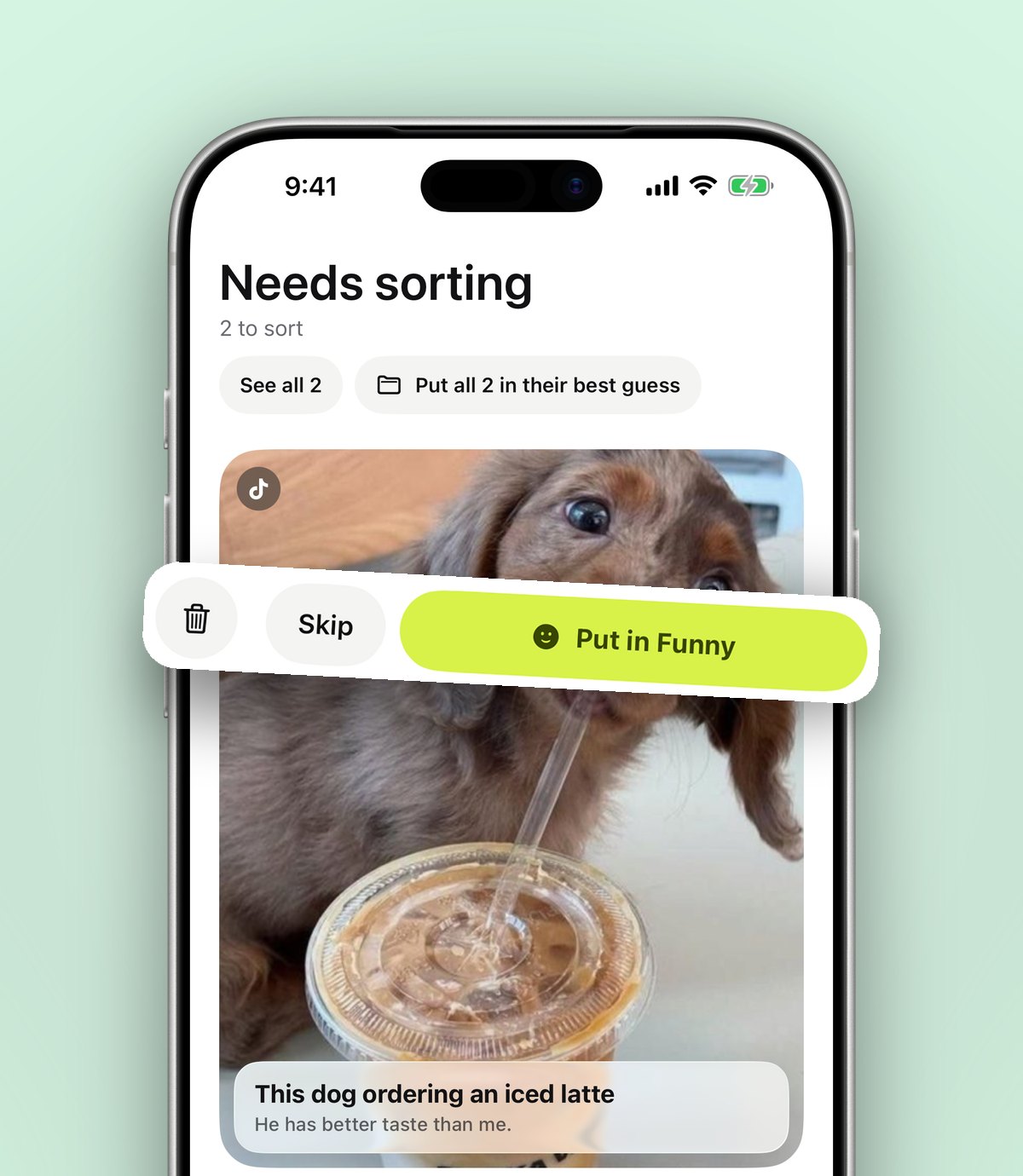
Needs sorting is the app being honest. Some saves are genuinely unclear: a caption that is only emojis, a meme, a video with no caption at all, or a post that could fit two folders equally well. Rather than guess and put something in the wrong place, anoli holds it in Needs sorting.
From there, each save can be sorted with one tap. It is a small, short list, not a backlog. Many people glance at it once a day, or once a week while the kettle boils.
Tip: an emoji only caption is a common reason a save lands in Needs sorting. If you save lots of those from one creator, moving a few teaches anoli where that kind of post belongs.
How does moving a save teach it?
This is the part that makes sorting feel personal over time. When you move a save from one folder to another, it is taken as a lesson: posts like this belong here, and not where I put it.
Say you have a Garden folder and a Plants folder, and a monstera care guide gets filed into Plants. You move it to Garden. Next time a similar post arrives, it goes to Garden. The more you move, the more it fits the way you think, and the less you need to move.
A few practical things about teaching:
- One move counts. You do not need to correct something ten times.
- Your choice always wins. If you pick a folder yourself, it is not second guessed later.
- New folders work straight away. Create a folder called Skincare and move a couple of skincare posts in. Similar saves start landing there.
Can you choose the folder yourself when you share?
Yes, if you prefer. By default, sharing is instant: the share sheet saves and closes, and sorting happens for you. If you would rather pick a folder every time, turn on Choose a folder when sharing in Settings, and a folder picker appears as you share. Most people leave it off and let anoli sort, then move the occasional save.
Does the sorting look at anything else on my phone?
No. The app only sees what you choose to share with it. iPhone apps cannot read your other apps, your messages or your camera roll on their own, and sorting does not need to. It works from the save in front of it: the link, the caption or page text, and the folders you have made.
Your folders, links and notes sync to your account so they are safe if you change phone. Photos, videos and files you save stay on your phone, unless you put them in a shared folder or use one as a folder cover. And if you ever want to leave, one button exports everything as a zip and another deletes your account.
How do you set up folders so sorting works best?
Sorting is only as good as the folders it sorts into. A few tips:
- 1Use clear, plain names. "Recipes", "Workouts", "Travel", "Home" work better than "Stuff" or "Misc".
- 2Start with a handful. Five to eight folders cover most people. You can add more as patterns appear.
- 3Use folders inside folders for detail. Put Italy and Japan inside Travel, rather than making them top level folders. It keeps your home screen tidy and the main folders clear.
- 4Avoid near duplicates. Two folders called Food and Recipes will confuse anyone, including you. Merge them, or make the difference clear, such as Restaurants and Recipes.
- 5Make them easy to spot. Give folders a colour, an emoji or a cover photo. Each folder shows its three latest saves peeking out, so you can see what is inside at a glance.
What about saves you made before?
Years of saves inside Instagram, TikTok and Pinterest can come in too. Go to Settings, then Import saved posts. It reads the data download those apps let you request: Instagram saved posts, TikTok favourites and Pinterest. Your Instagram collections and Pinterest boards become folders of their own, and everything else is sorted in the same way as a new save.
Our guides walk through each step: exporting your Instagram saved posts and importing your TikTok favourites into folders.
Does sorting work for notes, photos and files?
You can save your own notes, photos, videos, PDFs and files too. These are yours, so you choose where they go, and you can move them like any other save. Search then looks inside notes and PDFs as well as captions, transcripts, tags and creator names.
Where else can you save from?
Sorting works the same way however a save arrives:
- The share sheet in any app with a Share button. Our share sheet tips show how to put it first in the row.
- The Action Button or Control Centre on iPhone, with Save to anoli. See saving in one press with the Action Button.
- The Chrome extension on a laptop, which saves the page you are on to your phone.
Auto sorting compared with doing it yourself
There are a few ways to keep saves organised, each with real strengths:
- Instagram collections: built in and easy, if you remember to choose a collection each time you save. Only for Instagram. We compare them directly in Instagram collections vs anoli.
- Pinterest boards: great for visual ideas. You pick the board each time.
- Notes apps and spreadsheets: total control, all manual.
- anoli: saves from every app, sorted into your folders for you, with Needs sorting for anything unclear and one tap moves that teach it.
If you enjoy filing things carefully, manual tools are lovely. If you would rather just save and find things later, automatic sorting is the difference between a tidy library and a pile.
If sorting does not seem right
If saves keep landing somewhere odd, the fix is usually one of these: two folders with very similar names, a folder with a vague name like Misc, or a new kind of save anoli has not seen you sort yet. Rename or merge the folders and move a few saves, and it settles quickly. If something still looks wrong, our support page is there to help.
Just save
The best organising system is the one you do not have to think about. Share the things you love, let them find their folder, and move the odd one. Before long, your saves will look as if you sorted them by hand.
You can download anoli for free on the App Store, with no account or card needed to start. Read more on the anoli home page or see what people say on our reviews page.
Questions people ask
How does anoli sort saved posts?
anoli reads the caption of a post or the text of a web page and files the save into the folder that fits best among your own folders. If it is not sure, the save waits in Needs sorting.
What does Needs sorting mean in anoli?
It is where saves wait when anoli is not confident which folder they belong in, such as posts with emoji only captions. You can sort each one with a single tap.
Does anoli learn from my changes?
Yes. When you move a save to a different folder, anoli remembers and files similar saves there next time.
Can I choose the folder myself when I save?
Yes. Sharing is instant by default, but you can turn on Choose a folder when sharing in Settings to pick a folder each time.
Will anoli sort my old Instagram and TikTok saves?
Yes. Settings, Import saved posts reads the data download from Instagram, TikTok favourites and Pinterest. Collections and boards become folders and everything else is sorted.
Try it with your own saves
Free to start on iPhone and iPad. See what people say.