
iPhone share sheet tips: put the apps you use first
· 6 min read
THE SHORT ANSWER
To put your apps first in the iPhone share sheet, open any share sheet, scroll the row of app icons to the end, tap More, then Edit, switch on the apps you want and drag them into Favourites at the top. The actions list below has its own Edit Actions option. This is also how you add anoli, a free iPhone app that saves posts from Instagram, TikTok and any website into folders, so saving takes one tap.
You probably open the share sheet dozens of times a day without thinking about it. It's the panel that slides up when you tap the Share button: a row of people, a row of apps and a long list of actions. Most of us leave it exactly as it came, which means scrolling past apps we never use to reach the one we always do.
A few minutes of setup changes that. This guide shows you how to put your favourite apps first, tidy the list of actions, hide suggestions you don't want, and fix the common problem of an app that simply isn't there.
What is the iPhone share sheet?
The share sheet is the system panel that appears when you tap Share in almost any app: Safari, Photos, Instagram, TikTok, YouTube, Notes and many more. It has three parts.
- The people row at the top suggests contacts and recent conversations.
- The app row shows apps you can send things to, such as Messages, Mail, Notes, WhatsApp or a save app.
- The actions list below holds things you can do, such as Copy, Add to Reading List, Save to Files, Print, or your Shortcuts.
Each part can be customised, and they're set up separately.
How do you reorder apps in the iPhone share sheet?
The app row is where most people want to make changes. Here's how to bring the apps you use most to the front.
- 1Open any share sheet. Safari is easy: open a page and tap the Share button.
- 2Swipe the row of app icons all the way to the left until you reach the end.
- 3Tap More.
- 4Tap Edit at the top.
- 5Under Favourites, tap the green plus next to any app to add it, or the red minus to remove one.
- 6Drag the handles on the right to put your favourites in the order you want.
- 7Switch off apps you never share to in the list below, so they stop cluttering the row.
- 8Tap Done.
Your favourites now appear first in the app row, everywhere. Changes you make from Safari apply in Instagram, Photos and every other app too.
Tip: Put the two or three apps you share to every day in Favourites and nothing else. A short row is faster than a long one, even if the long one is in a sensible order.
How do you add an app that's missing from the share sheet?
If an app you've installed doesn't appear, it's usually just switched off. Follow the steps above and look in the list under Favourites. Find the app, switch it on, and drag it into Favourites if you want it at the front.
If it still isn't there, check these things:
- Open the app once. Some apps only register with the share sheet after their first launch.
- Check what you're sharing. An app that saves links may not appear when you share a photo, and the other way round. Apps choose which kinds of things they accept.
- Restart the iPhone. It sounds basic, but it often fixes a share sheet that hasn't noticed a new app.
- Update the app and iOS. Older versions sometimes have share extension bugs.
For anoli specifically, the anoli support page has setup help if it's not showing up.
How do you edit the actions list?
The actions list is the vertical list under the app row. It has its own editor.
- 1Open a share sheet and scroll to the very bottom of the actions list.
- 2Tap Edit Actions.
- 3Tap the plus next to actions you use often, like Copy or Add to Reading List, to add them to Favourites at the top.
- 4Remove actions you never use from Favourites with the minus.
- 5Drag to reorder, then tap Done.
Shortcuts you've built that accept shared items appear in this list too. If you use Shortcuts, adding your favourite one here saves a trip into the Shortcuts app.
How do you remove contact suggestions from the share sheet?
The people row is helpful if you often send things to the same friends, and distracting if you don't. You can switch it off. In the Settings app, open Siri (called Apple Intelligence & Siri on some iPhones), find the Suggestions section and turn off Show When Sharing. The exact wording can move between iOS versions, so if you can't see it, search Settings for Sharing.
To remove just one person from the row instead, press and hold their icon in the share sheet and choose Suggest Less.
Why does the share sheet look different in Instagram and TikTok?
Some apps show their own share panel first, with their own buttons for sending to friends inside the app. The iPhone's share sheet is usually one step further in.
- Instagram: tap the paper plane under a post or reel. The panel shows your Instagram friends, with a row of options along the bottom. Look for Share or More in that row to open the iPhone share sheet.
- TikTok: tap Share on the video, then scroll the bottom row of apps to the end and tap More.
- YouTube: tap Share under the video, then More if your app isn't listed.
- Safari and most other apps: tap the Share button and the iPhone share sheet opens straight away.
Once you're in the iPhone's own share sheet, your favourites appear in the order you set. That one setup is what makes saving from any app quick.
The most useful apps to keep in your share sheet favourites
Everyone's list is different, but these are the kinds of apps people tend to put first.
- A messaging app you use daily, like Messages or WhatsApp.
- A save app for posts and links you want to keep and find later.
- Notes or Reminders for quick lists and tasks.
- Files if you work with documents.
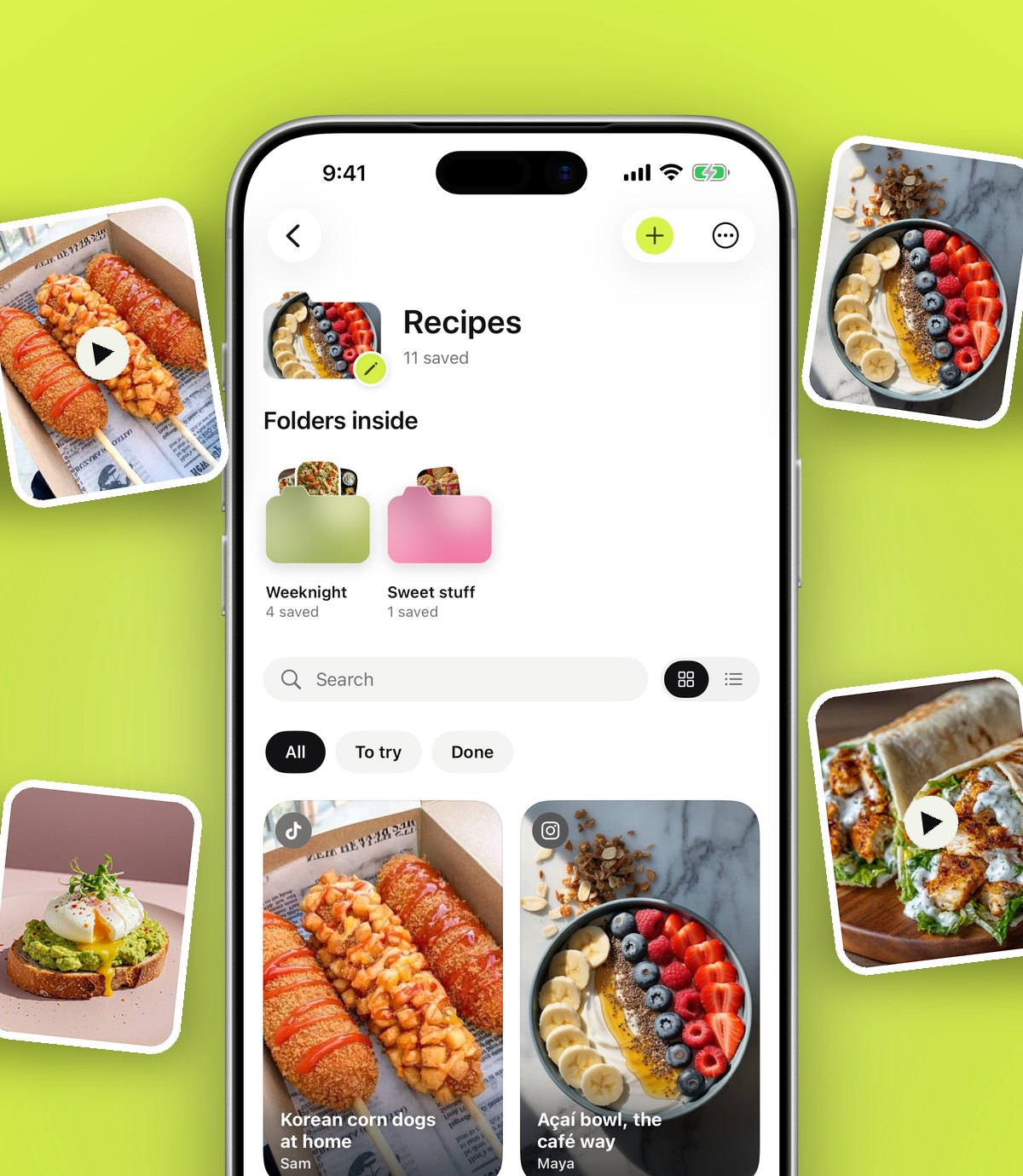
If you save a lot from social apps, a save app in the first or second spot is the change you'll feel most. With anoli, an iPhone app that keeps the things you save online in one place, you tap Share, tap anoli and that's it. anoli reads the caption, files the save into a folder like Recipes or Travel, and the share sheet closes. You stay in the app you were in. If anoli isn't sure where something belongs, it waits in Needs sorting for you to sort with one tap later.
Tip: If you'd like to choose the folder yourself sometimes, anoli has a setting for that: Settings > Choose a folder when sharing. It's off by default so saving stays instant.
Other share sheet tricks worth knowing
Share several things at once
In Photos and Files, tap Select, choose several items, then tap Share. The share sheet sends all of them at once, which is handy for screenshots.
Change what you share before sending
In Safari, the share sheet shows a small Options link under the page title. You can choose to share the page as a link, a PDF or a web archive, depending on the app you share to.
Copy a link without opening anything
Copy in the actions list puts the link on your clipboard. Many apps, anoli included, can then save the copied link. In anoli you can press and hold the app icon and choose Save copied link.
Use AirDrop for your own devices
AirDrop sits in the app row too. It's the quickest way to move a link or photo from your iPhone to your Mac or iPad nearby.
Which save apps work best from the share sheet?
Most save apps work from the share sheet, and each has a different strength.
- Notes: free and built in, good for links you want to write next to.
- Safari Reading List: good for articles you'll read soon, with offline reading.
- Pinterest: good for visual ideas, especially if you already use boards.
- anoli: good for posts from Instagram, TikTok, YouTube and websites in one place, filed into folders for you, with search inside captions and transcripts.
If you're comparing options, our guide on how to save links on iPhone and the save for later app explainer go into more detail.
Set it up once and forget it
The share sheet is one of those things that rewards five minutes of attention. Put your daily apps first, clear out the ones you never use, and decide whether you want the people row. After that, every share is a little faster, hundreds of times a month.
If you'd like a home for the things you share, anoli is free on the App Store, with no account or card needed to start. Find out more on the anoli home page or read what people think on the reviews page.
Questions people ask
How do I add an app to my iPhone share sheet?
Open any share sheet, scroll the app row to the end, tap More, then Edit. Switch the app on and drag it into Favourites, then tap Done.
How do I change the order of apps in the share sheet?
In the same Edit screen, drag the handles next to your Favourites into the order you want. The order applies in every app.
Why is an app not showing in my share sheet?
It's usually switched off under More > Edit. If it isn't listed, open the app once, check it accepts what you're sharing, restart the iPhone and update the app.
How do I stop contacts appearing in the share sheet?
In Settings, open Siri or Apple Intelligence & Siri and turn off Show When Sharing in the Suggestions section. To hide one person, press and hold their icon and choose Suggest Less.
How do I add anoli to the share sheet?
Tap Share anywhere, scroll the app row to the end, tap More, then Edit, switch anoli on and drag it to the front. After that, saving is one tap.
Try it with your own saves
Free to start on iPhone and iPad. See what people say.