
How to save links on iPhone so you can find them later
· 7 min read
THE SHORT ANSWER
On iPhone you can save a link with Safari bookmarks, Safari Reading List, Apple Notes, or a save app. Bookmarks and Reading List are built in but hard to search; Notes is flexible but manual. anoli is a free iPhone app that saves links from Safari, Instagram, TikTok and any other app through the Share button, sorts them into folders automatically and lets you search inside them.
Saving a link is easy. Your iPhone gives you at least five ways to do it. Finding that link again two months later is the hard part, because each of those five ways puts it somewhere different, and none of them asks why you saved it.
So you end up with forty open tabs, a Reading List you never open, a note called Links with no order to it, and a chat with yourself full of URLs. This guide walks through every built in option, what each is genuinely good for, and a simple system for saving links on iPhone that you will still be using next year.
What are the ways to save a link on iPhone?
Here are the main ones, with how to use each and where it falls short.
Safari bookmarks
Bookmarks are the classic. In Safari, tap the Share button and choose Add Bookmark, or press and hold the book icon. You can choose a folder and the bookmark syncs to your other Apple devices through iCloud.
- Good for: sites you return to often, like your bank, a school portal or a favourite news site.
- Not so good for: the hundreds of one off pages you want to look at later. Bookmark folders get deep quickly, and bookmarks only save the title and address, not what was on the page.
Safari Favourites
Favourites are a special bookmarks folder that shows up when you open a new tab. Great for a handful of sites you use every day. Not a place for saving things for later.
Safari Reading List
Tap Share, then Add to Reading List. The page joins a list you can find in Safari's bookmarks view, under the glasses icon. Safari can save Reading List pages for offline reading too, which is handy on the Underground.
- Good for: a short queue of articles to read soon.
- Not so good for: anything you want to keep long term. There are no folders, and the list becomes a long scroll fast.
Tab Groups
Safari lets you group open tabs. Open the tab view, then the Tab Groups menu, and make a group for a project, like Kitchen or Holiday. Good for research you are actively doing this week. Less good as an archive, because tabs are still tabs, and a group with eighty of them is hard to use.
Apple Notes
From almost any app, tap Share and choose Notes to add the link to a new or existing note. Notes shows a small preview of the page. You can write your own thoughts beside it.
- Good for: a few links with context, like a packing list or a gift list.
- Not so good for: lots of links. Nothing gets sorted for you, and a long note of pasted links is hard to scan.
Messaging yourself
Many people send links to themselves in Messages or WhatsApp. It is quick and it works across apps. But a chat is a timeline, not a library. Finding a link means scrolling or remembering a word from the URL.
Screenshots
Fast and universal, but you lose the link entirely. We covered how to get out of that habit in our guide to organising screenshots on iPhone.
Why do saved links get lost?
Look at that list again. Every option stores the link. Very few of them help you find it. The problems are the same each time:
- The link has no context. A URL and a page title rarely tell you why you saved it.
- Nothing is sorted unless you do it. And at the moment of saving, you are busy.
- Search only looks at titles. If you remember a word from the page, most options cannot help.
- Links live in different places. Safari links in one place, Instagram posts in another, TikToks in a third.
That last one is the big one. A lot of the links worth saving now are not web pages at all. They are reels, TikToks, YouTube videos and threads. If your link system only covers Safari, it is only covering part of what you save.
What does a good link saving setup look like?
It should do four things:
- 1Save from the Share button in any app, in one tap.
- 2Put the link into a sensible folder without you choosing every time.
- 3Keep what was on the page, like the caption or text, so you can search it.
- 4Show you the link again when you need it, with a note about why you kept it.
Safari bookmarks do the first well. Notes does the fourth. Neither does all four.
How to save links with a save app
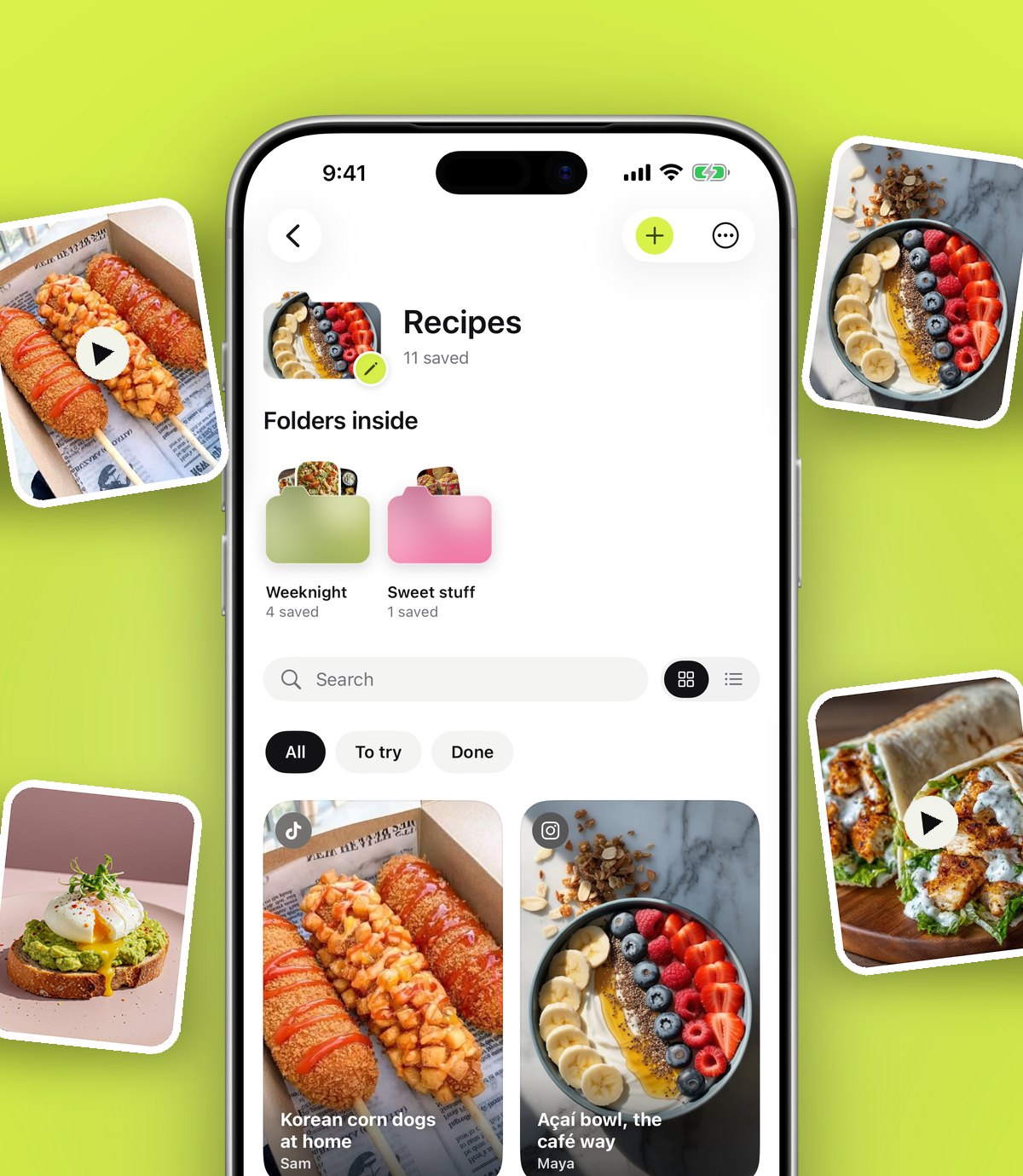
anoli is a free iPhone and iPad app that keeps the things you save online in one place and sorts them into folders. It works from the Share button in Safari, Chrome and every other browser, and in Instagram, TikTok, YouTube, Pinterest, X, Reddit, Threads, Facebook and Telegram.
When you save a link, it reads the page and files it into a folder like Recipes, Travel, Work or Home. If it is unsure, the link waits in Needs sorting until you file it with one tap, and moving a save teaches it where similar links belong.
Set it up once
- 1Download anoli from the App Store. It is free to start, with no account and no card.
- 2Open Safari, go to any page, and tap the Share button.
- 3Scroll the row of apps to the end and tap More.
- 4Tap Edit, switch anoli on and drag it to the front of the list.
- 5Tap anoli. The link is saved and sorted.
From then on, saving any link takes two taps. It is the same in every app. If anything goes wrong, the support page covers the common fixes.
Finding a link later
Search looks inside captions, notes, transcripts, PDFs, tags and creator names, and shows the line that matched, so you can see at a glance that it is the right one. You can filter to just links, or use the calendar to see what you saved on a particular day, which is surprisingly useful when all you remember is "it was the week before my birthday".
Tip: add a one line note when you save a link you plan to act on. "Compare with the IKEA one" or "ask Priya about this". Notes are searchable, and they turn a vague link into a next step.
Saving links from your laptop
A lot of links start on a computer: a product you are researching at work, an article you do not have time for. The Anoli extension for Chrome, on the Chrome Web Store, saves any page with one click, and it appears on your phone, sorted like everything else. No more emailing links to yourself.
Which option should you use?
Here is a fair summary. Most people end up using two or three of these.
- Safari Favourites and bookmarks: sites you visit all the time.
- Safari Reading List: a short queue of articles to read this week, especially offline.
- Tab Groups: active research for a project you are doing now.
- Apple Notes: small lists with your own writing around the links.
- anoli: everything you want to come back to, from any app, sorted and searchable.
If you used Pocket for this before it closed, our guide to Pocket alternatives compares the reading focused options in more detail.
Make your saved links useful
Saving is only half of it. A few habits make your saved links worth having:
- Set a reminder on links with a deadline, like a ticket sale or an application closing date.
- Mark links as done when you have read, booked or bought the thing, so your folders stay about what is next.
- Share a folder when a plan involves other people. With Pro, send one link to a friend or partner and you can both add to the folder, react and talk about each save. Anyone with the link can view the folder on the web too.
- Have a quick tidy once a month. Delete links you no longer care about. It keeps search results sharp.
What about privacy?
Links are personal. They show what you are planning, buying and thinking about. In our app, folders, links and notes sync to your account so they are safe if you change phones. Photos, videos and files stay on your phone unless you put them in a shared folder or use one as a cover. One button exports everything as a zip, and one button deletes your account.
How much does it cost?
Safari, Notes and Messages are free. Our app is free to start, and anoli Pro is £10 a year, or the local equivalent, through the App Store, with unlimited saves, notes, photos and files, summaries and transcripts, picture covers and shared folders. You can cancel any time in your iPhone settings.
The short answer
To save a link on iPhone, tap Share and choose where it goes. Use Safari for sites you visit often and Reading List for a short reading queue. For everything else, especially links from social apps, use one place that sorts for you and searches inside what you saved. That is what anoli is for. For more on saving from Instagram in particular, read the best app to save Instagram posts. You can learn more on the anoli home page and read reviews from people who use it.
Questions people ask
How do I save a link on my iPhone?
Tap the Share button in any app and choose where to save it: Add Bookmark or Add to Reading List in Safari, Notes, or a save app like anoli that sorts links into folders.
Where is Reading List on iPhone?
Open Safari, tap the bookmarks icon (the open book), then the glasses icon. Pages you added to Reading List appear there.
What is the best way to save links for later on iPhone?
For a short reading queue, Safari Reading List works well. For saving links from many apps and finding them again, a save app like anoli, which sorts links into folders and searches inside them, is easier.
Can I save Instagram and TikTok links on iPhone?
Yes. Tap Share on the post, open the share sheet and choose an app. anoli saves Instagram and TikTok links with their captions and plays the videos inside the app.
How do I save links from my computer to my iPhone?
Use the Anoli extension for Chrome. Click it on any page and the link appears in anoli on your iPhone, sorted into a folder.
Try it with your own saves
Free to start on iPhone and iPad. See what people say.