
Too many screenshots? How to organise screenshots on iPhone
· 7 min read
THE SHORT ANSWER
To organise screenshots on iPhone, find them all in the Photos app under Media Types, then Screenshots, delete the ones you no longer need, and use Photos search, which can find words inside images. To stop the pile growing back, save the link instead of a screenshot: tap Share and send the post or page to anoli, a free iPhone app that sorts saves from Instagram, TikTok and any website into folders.
A recipe caption. A pair of boots. The opening hours of a café. A meme for the group chat. A tweet you wanted to remember. A map of somewhere you might go. One screenshot at a time, your camera roll quietly fills up until your holiday photos are buried under two thousand images of other people's posts.
Screenshots are fast and they never fail, which is why everyone takes them. The trouble is what happens afterwards. This guide shows you how to find and clear the screenshots you already have, how to keep the useful ones organised, and how to save things in a way that does not turn into another pile.
Why do screenshots pile up?
Screenshots are the universal save button. They work in every app, offline, with no setup. But they have some built in problems:
- They lose the link, so you cannot get back to the original post, video or shop page.
- They lose most of the caption, because only what fits on screen is captured.
- They mix with your real photos, so the camera roll stops being a place for memories.
- They have no folders by default, and no sense of why you took them.
- They take up storage, which adds up over the years.
Most of us take screenshots for one of three reasons: to remember something for later, to send to someone, or to keep proof of something like a booking. Only the last really needs to be a screenshot.
Where are all my screenshots on iPhone?
Your iPhone already groups them for you. In the Photos app, look for the Media Types section and tap Screenshots. On recent versions of iOS, it sits under Collections when you scroll down in Photos. On older versions, it is under Albums, then Media Types.
This view shows only screenshots, newest first. It is the best place to start a clear out, because you can see everything in one place without your actual photos getting in the way.
How to clear out old screenshots
Doing this once feels great, and it is quicker than it sounds.
- 1Open Photos and go to Media Types, then Screenshots.
- 2Tap Select in the top corner.
- 3Drag your finger across a row and down the screen to select many at once. Lift your finger to stop, and tap any you want to keep to unselect them.
- 4Tap the bin icon and confirm.
- 5Go to Recently Deleted and empty it if you want the space back straight away. Otherwise, they are removed for good after 30 days.
Tip: work in short bursts. Clear one month at a time, oldest first. The very old screenshots are the easiest to delete, because whatever they were for has usually passed.
What to keep
As you go, you will find screenshots that are still useful. Do not keep them in the camera roll. Pull them out into a better home, which we will get to in a moment. Typical keepers are:
- Recipes and how to guides you still want to try.
- Places you want to visit.
- Products or outfits you are still thinking about.
- Bookings, tickets and receipts you might need.
- Kind messages you want to keep.
Can you search screenshots on iPhone?
Yes, and it is one of the most useful features most people do not know about. The search in the Photos app can find text inside images. Type a word that was in the screenshot, like the name of a restaurant or an ingredient, and Photos will usually find it.
It works best for clear, printed text and is less reliable for handwriting or tiny captions, but it is very handy when you are hunting for one specific screenshot.
How to organise the screenshots you keep
There are two decent options, depending on how many you have.
Option 1: albums in Photos
Make a few albums like Recipes, Places and Shopping, and add your keeper screenshots to them. It is free and built in. The screenshots stay in your camera roll as well, though, so the clutter does not really go away, and albums have no notes.
Option 2: a save app with folders
Move the keepers into an app built for saving things. anoli, a free iPhone app that saves posts from Instagram, TikTok and any website into folders, can save photos too, including screenshots. Select a screenshot in Photos, tap Share, choose anoli, and put it in the right folder. Add a short note, like "the café near the station", so search can find it later. Then delete it from your camera roll.
Photos you save there stay on your phone rather than being uploaded, unless you put them in a shared folder or use one as a folder cover.
The real fix: save the link, not a picture of it
The biggest change is not organising screenshots better. It is taking fewer of them. Almost everything you screenshot has a Share button, and sharing the link keeps far more than a screenshot does.
What you keep when you share instead
- The original post or page, one tap away.
- The full caption, not just the part that fitted on screen.
- The video, playable with sound.
- The creator, so you can see what else they posted.
- A tidy camera roll.
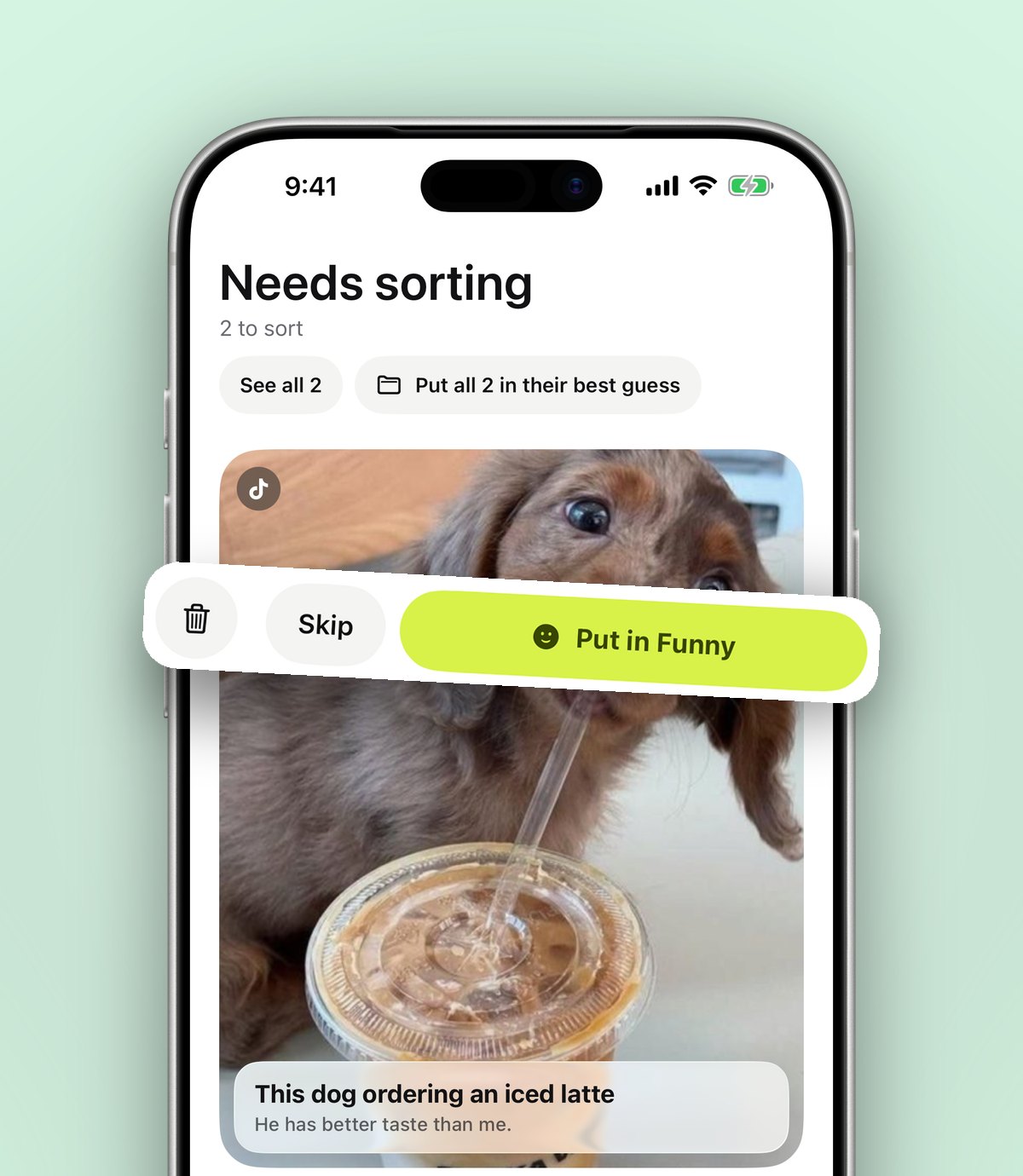
anoli was built for this habit. When you share a post or a page to it, it reads the caption and files it into a folder like Recipes, Travel or Style. If it is unsure, it waits in Needs sorting for one tap. Reels and TikToks play inside the app, carousels stay swipeable, and search looks inside captions, notes, transcripts, tags and creator names, then shows the matching line.
How to switch from screenshotting to sharing
- 1Install anoli for free from the App Store. No account needed to start.
- 2Next time you reach for a screenshot, tap the Share button on the post instead.
- 3In the share sheet, scroll the app row to the end and tap More, then Edit. Switch anoli on and drag it to the front.
- 4Tap anoli. The post is saved and sorted.
- 5Do the same in TikTok, YouTube, Safari, Pinterest, Reddit or X. The steps are the same everywhere.
If it does not appear in the share sheet, see the support page.
When a screenshot is still the right choice
Screenshots are not the enemy. They are the right tool when:
- You need something offline, like a boarding pass or a ticket barcode with patchy signal.
- The thing you want has no share button, like part of a game or a settings screen.
- You want to show someone exactly what your screen looks like.
- The content might change, like a price or an order confirmation, and you want a record.
For long web pages, Safari can take a full page screenshot: take a screenshot, tap the preview, choose Full Page at the top, and save it as a PDF to Files. That keeps the whole page as one tidy file. You can then share that PDF into a folder alongside related links.
Keeping it tidy from now on
A few small habits stop the pile coming back:
- Share first, screenshot second. If a post has a Share button, use it.
- Delete as you go. When you screenshot something to send to a friend, delete it once it is sent.
- Use reminders for things with a date. In the app you can set a reminder on a save, so the restaurant you want to book or the sale that ends on Friday does not need a screenshot to jog your memory.
- Do a monthly sweep. Five minutes at the start of the month in the Screenshots view keeps it from ever getting out of hand.
If many of your screenshots are recipe captions, our guides to saving Instagram recipes and the best recipe organiser app are worth a read. If they are reels you were scared of losing, how to find your saved reels on Instagram shows where Instagram keeps them.
What does it cost?
Everything in Photos is free. Our app is free to start, with no account and no card. anoli Pro is £10 a year, or the local equivalent, through the App Store, and adds unlimited saves, notes, photos and files, plus summaries, transcripts, picture covers and folders shared with friends. You can cancel any time in your iPhone settings.
The short version
Find your screenshots under Media Types in Photos, clear them out in short bursts, and use Photos search to find text in the ones you keep. Then change the habit: share the post instead of screenshotting it, so you keep the link, the caption and the video in a folder where you can find it. Read more about the app on the anoli home page, or see what people say about it.
Questions people ask
Where are screenshots stored on iPhone?
In the Photos app. Scroll to Media Types and tap Screenshots to see only your screenshots, newest first.
How do I delete lots of screenshots at once?
Open the Screenshots view in Photos, tap Select, then drag your finger across and down to select many. Tap the bin, then empty Recently Deleted if you want the space back now.
Can my iPhone search text inside screenshots?
Yes. The search in the Photos app can find words inside images, which works well for printed text in screenshots.
What is better than screenshots for saving posts?
Sharing the post's link keeps the full caption, the video and the creator. anoli saves shared posts into folders automatically so you can search them later.
Do photos I save to anoli get uploaded?
No. Photos, videos and files stay on your phone unless you put them in a shared folder or use one as a folder cover. Folders, links and notes sync to your account.
Try it with your own saves
Free to start on iPhone and iPad. See what people say.